VIDEO TO FRAMES · PRACTICAL GUIDE
Why do video to frames exports repeat images?
The short answer
A timed export asks for an image at each requested timestamp. It does not promise a new source frame for every request. When the source changes less often than your sampling schedule, two nearby timestamps can resolve to the same displayed image. Lower the requested FPS to sample less often, or choose every original frame when you need the decoded sequence.
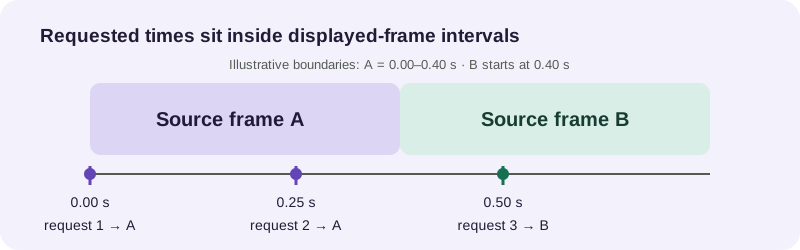
A timestamp walk-through
Imagine source frame A is displayed from 0.00 seconds until 0.40 seconds, and frame B begins at 0.40 seconds. Requests at 0.00 and 0.25 seconds both fall in A’s display interval. A request at 0.50 seconds falls in B. Three requested timestamps therefore touch only two source-frame display intervals. This is a timing illustration, not a measurement of a particular video file.
FPS is a request frequency
At 4 FPS the timestamp interval is 1 ÷ 4, or 0.25 seconds. At 30 FPS it is about 0.0333 seconds. The faster schedule makes more requests per second; it does not add detail to a source that has fewer distinct displayed frames. A repeated image can be the correct result for the requested time even when the file itself contains no duplicated encoded frame.
When source timing varies
Some videos do not present frames at one perfectly uniform cadence. In variable-frame-rate media, each decoded image can remain on screen for a different duration. A nominal FPS label is not enough to reconstruct every presentation timestamp. For a regular time sample, request the timestamps you need and inspect the output. For the decoded source sequence, use the extractor’s every-original-frame mode and expect device memory or run limits to matter on long clips.
What one local test showed
On one Windows 11 Chrome 155 machine, a 10-second H.264 sample labeled 60 fps produced 20 images for 20 half-second requests. Asking for every original frame requested 600, but the page showed 52 before browser-memory protection stopped the run. A portrait crop from the same source showed 20 of 20 half-second requests and 173 images from a 600-frame every-original-frame request before the same protection. These counts are observations from one setup, not expected results for every browser, device or video.
The run record does not include a pixel-by-pixel duplicate-image audit, so it cannot establish how many distinct pictures appeared in the timed exports. The point of the comparison is that requests and generated source-sequence images are separate counts. The extractor’s 2,000-image and 200 MB encoded-image limits may also stop a run; device memory can stop it earlier.
Choose the mode for your goal
Use interval or FPS sampling to make a manageable set of images across time. Use a single-frame capture when you need one precise moment. Use every original frame when the order and decoded sequence matter. If a sampling result looks repetitive, first compare requested timestamps with the source frame cadence; do not assume that the image encoder has created extra motion detail.
What was checked
The example ranges and frame times above are an original timing illustration. The test counts come from a local PickVideoFrame run recorded on 22 October 2026 with the H.264 and portrait test clips documented in the companion image-count guide. Only the visible image counts are reported. No claim is made about unrecorded pixel comparisons, export speed, or results on other systems.