VIDEO TO FRAMES · PRACTICAL GUIDE
Video to frames: how many images will you get?
The answer: count the requested timestamps
For a constant sampling rate, multiply the selected duration in seconds by the requested frames per second. If the end of the range is excluded, round up a non-integer result. A 10-second range sampled at 2 FPS requests 20 images. This counts sampling requests, not necessarily distinct source frames. Use the planner below before starting a large export.
Image-count planner
This calculates timestamps only. No video upload is needed.
10 seconds × 2 FPS = 20 image requests.
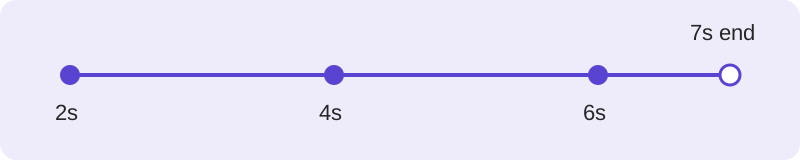
A reproducible example
Consider the range from 2 seconds up to, but not including, 7 seconds. At one image every 2 seconds, the requested timestamps are 2, 4 and 6 seconds: three images. Dividing the range length by the interval gives (7 − 2) / 2 = 2.5. Rounding up gives 3. There is no request at 7 seconds because the end is excluded. At 2 FPS instead, the interval becomes 0.5 seconds. Requests run from 2 through 6.5 seconds, giving 10 images.
Why sampled images are not the same as source frames
A request at a particular timestamp asks the extractor for the source image displayed at that time. If two requested times fall within the display interval of one source frame, both may select that frame. Requesting more images per second than the source contains cannot create additional recorded detail. Variable-frame-rate video adds another distinction: source-frame display durations vary, so multiplying duration by one nominal source rate does not establish the exact source-frame count. Use the tool’s every-original-frame mode when you need its decoded source sequence rather than a timed sample.
Plan a range instead of exporting everything
Start with the part of the video that contains the event you need. A 60-second range sampled at 1 FPS requests 60 images. The same range at 10 FPS requests 600 images. These are arithmetic examples, not speed or memory benchmarks. PickVideoFrame stops a run at 2,000 images or 200 MB of encoded image data. Either limit may be reached first. The planner only checks the image-count limit: it cannot predict compressed image sizes, browser memory, decoding support or the amount of time an export will take.
What does an exact boundary mean?
This page uses a start-inclusive, end-exclusive range. The first requested timestamp is the start. Each later request adds the interval, and the process stops before the end. Consequently, a one-second range at 1 FPS requests one image, at its start, rather than two images at both endpoints. This definition avoids counting a boundary image twice when adjacent ranges are sampled. Actual decoded output still depends on the video and the extractor; inspect the downloaded results rather than treating this planner as a media decoder.
Which setting should I choose?
Choose an interval when you think in terms of one image every few seconds. Choose FPS when you need a regular sampling frequency. They describe the same timestamp grid when interval = 1 / FPS. Choose a manual single-frame capture when one specific moment matters. Choose every original frame when sequence completeness matters. These modes solve different tasks; a higher requested FPS is not a general image-quality setting.
Can I estimate ZIP size from this count?
No reliable ZIP size follows from image count alone. Image dimensions, visual detail, output format and encoding settings all affect bytes per image. Export a small representative range and inspect the actual downloaded files if you need a rough planning input. Even then, label any extrapolation as an estimate and keep the sample’s provenance. This planner deliberately reports image requests without inventing a ZIP-size prediction.
Method and limits
Published 22 October 2026. Examples are original arithmetic walkthroughs under the explicitly stated range convention. The planner does not decode video. Product limits are taken from this site's extractor documentation; they are not competitor benchmarks.