PRACTICAL GUIDE · 2026-10-24
Extract images from video
The short answer
To extract images from video, open the frame extractor, choose a local video, select a capture mode and image format, then click Extract frames. Download individual images or the ZIP. Use Single frame for one moment, At an interval for spaced images, or Every original frame for a sequence.
Extract images without installing anything
- Choose a video from your device and wait for its preview and duration.
- Choose a capture mode. For a first run, keep a short range and an interval you can check.
- Select PNG or JPG, then click Extract frames.
- Read the completion status, inspect the timestamps, and download the images you need.
Video decoding, image encoding and ZIP creation happen in your browser. Page visits and affiliate advertisements use separate third-party requests; see the privacy policy.
A complete download we checked
On 24 October 2026, we created a synthetic three-second H.264 test clip at two frames per second, sized 160 × 90 pixels. In desktop Chrome on this Windows machine, we selected PNG and the interval mode, with a range from zero to three seconds and one image every second. The site reported a completed run with three images.
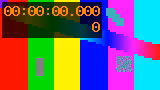
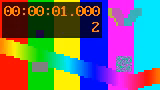
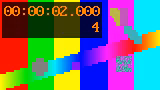
The downloaded ZIP contained three PNG files. Their filenames recorded source times of zero, one and two seconds. Each PNG header reported 160 × 90 pixels. The image payloads were 11,198, 14,029 and 13,322 bytes; the archive itself was 38,955 bytes. These are measurements of this small test, not a size forecast.
We checked the archive entries as well as the on-page result. That distinction matters: a visible thumbnail confirms an image was generated, while the downloaded file confirms it was saved in an archive you can keep. In this run the displayed count and archive-entry count agreed. We did not compare browser output pixels with another decoder, so this check establishes delivery and dimensions, not cross-decoder color fidelity.
The last saved image was at two seconds, even though the selected range ended at three seconds. For this particular range, the interval requests were zero, one and two; the end timestamp was excluded. A final image just before the video ends may therefore be missing from an interval sample without indicating an extraction failure. If the closing moment matters, inspect that moment separately with Single frame.
Choose images for the job
Before exporting, decide what you intend to keep. A few presentation slides or reference pictures need selected moments; a motion study may need the decoded sequence. Our sample had six source frames but the interval export deliberately kept three. A smaller result can be correct when your sampling plan asks for fewer images. Judge completion against the selected mode, rather than the source-frame count alone.
PNG avoids additional lossy image encoding. JPG is a lossy option with a quality setting. See the PNG vs JPG comparison for the separately recorded format test.
For a real clip, first export a short representative range and open the downloaded files. Check orientation, legibility and whether the chosen moments cover your purpose. Then widen the range using the same settings. This is a repeatable review method, not a performance claim: the tiny synthetic sample above does not establish how a long or high-resolution video will behave on your device.
If a run stops early, keep the status with your count. An archive containing generated images can still be only part of the intended sequence. The useful record is the selected range, capture mode, completion message and saved files together. In the documented test all three requested images were saved; no inference about other clips follows from that result.
Related guides
For request-count arithmetic, read the image-count guide. For local command-line exports, see FFmpeg extract frames. If your file will not load, start with the recorded codec observations in the MP4 guide.
Method: a locally generated FFmpeg test pattern, one browser run, and inspection of the actual downloaded ZIP and PNG headers. No private footage was used. No speed benchmark or physical-phone extraction test is claimed.