Video to JPG: Convert MP4 or MOV into Still Images
To convert video to JPG, choose a local video in the frame extractor, select JPG as the image format, choose one frame or a time range, then extract and download the JPG files.
Convert a video to JPG images
- Open the frame extractor and choose your video file.
- Set Image format to JPG. Review the quality setting before starting.
- For one picture, choose Single frame and position the preview. For several pictures, choose an interval and a short time range.
- Extract the frames. Save individual JPGs or download the completed images in a ZIP.
For a dedicated one-picture workflow, use Video screenshot and its Download JPG button.
Why choose JPG instead of PNG?
JPG uses lossy compression. It can be useful for photographic stills when smaller delivery files matter and slight compression changes are acceptable. PNG is a better option when you need lossless image encoding, such as for inspecting fine text or retaining an intermediate image.
Make the format decision around the image’s next use. If someone needs a JPG for an upload form, presentation or photo workflow, produce that file directly from the chosen video picture and keep the source video. If the still will be edited repeatedly, keep an intermediate copy before making the final JPG. This avoids turning a delivery format into the only remaining copy of a moment you may need to revisit.
Start with a frame that represents the difficult parts of your clip: fine patterns, small lettering or edges around a moving subject. A smooth background is an easy encoding case and can hide problems you notice later. Review that sample at the intended viewing size before exporting a long range. Choose the quality setting that makes the actual saved picture acceptable for its destination; a larger setting is not evidence that more detail has been recovered.
MP4 to JPG and MOV to JPG
Use the same workflow to convert MP4 to JPG or convert MOV to JPG when the browser can decode the video inside the file. MP4 and MOV identify containers; the video codec also matters. If loading fails, changing the output image setting cannot fix a video decode failure.
Can I change MOV to JPG by renaming it?
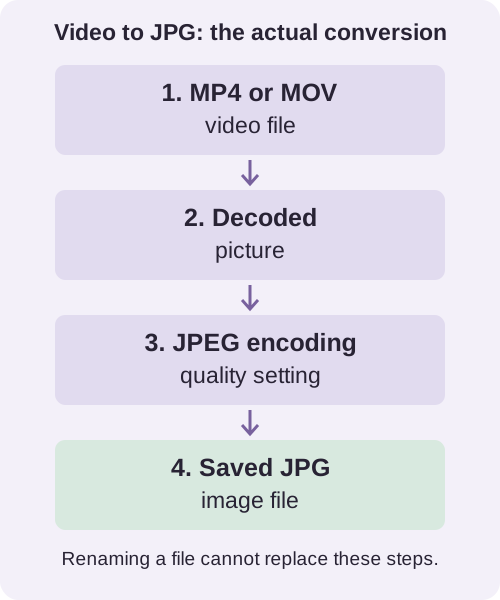
No. A video file contains timed media data, while a JPG contains one encoded still image. Select and decode a picture, then encode it as JPG. Changing the filename extension leaves the original media data in place.
Inspect one real JPG before exporting more
In our retained Chrome test on Windows 11, a locally generated SDR H.264 sample produced a JPG at its zero-second frame. The saved file was 640 × 360 pixels and 26,390 bytes, using quality 0.95. This is one synthetic sample, not a file-size prediction for your footage.

Treat the sample export as a delivery check. Reopen the downloaded image, confirm that it is the intended moment, and inspect any detail that matters to your task. Then export the remaining range with the same settings. If the first result is already unsuitable, producing hundreds more only multiplies the files you need to replace. Keep the sampling choice separate from the encoding choice: more selected moments do not repair compression in an individual picture.
JPG quality is an encoding setting
MDN documents JPEG quality as a parameter for lossy image encoding. It does not describe that number as a percentage of original video detail. For the separate paired-format observations and their limits, read PNG vs JPG for video to frames.